
Zoom integration
🌐 Overview
Section titled “🌐 Overview”Using Dive’s appointment system you can easily create appointments and summarize your recordings, but did you know that you can also connect your Zoom account and create Zoom appointments using dive’s interface? This page shows you how to connect/disconnect your account in order to use the Zoom feature.
🔗 Connecting your Zoom account
Section titled “🔗 Connecting your Zoom account”-
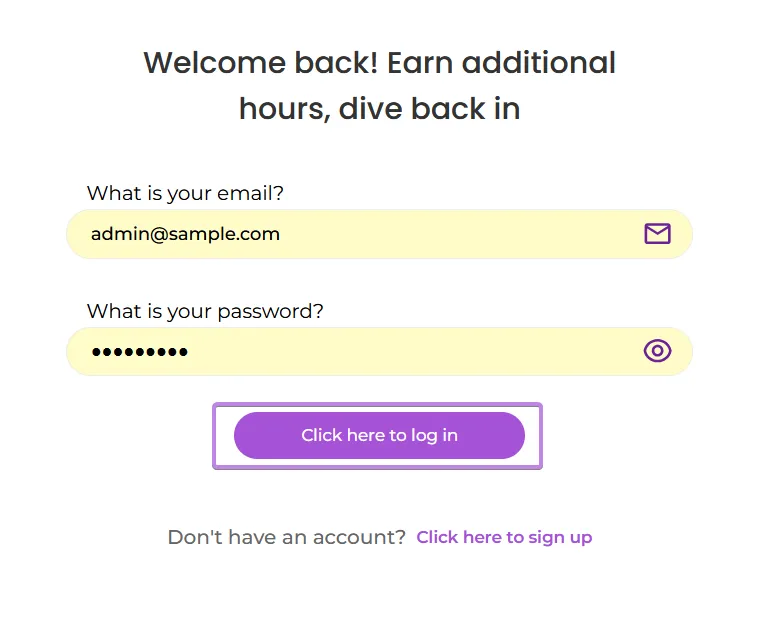
Log in to Dive
-
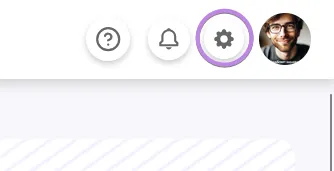
Open Settings
-
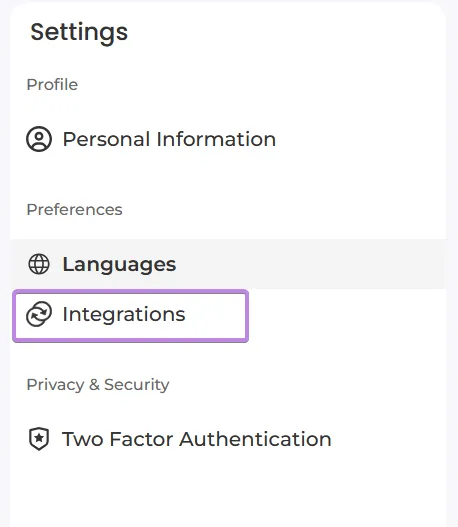
Go to the Integrations Tab
-
Connect to Zoom
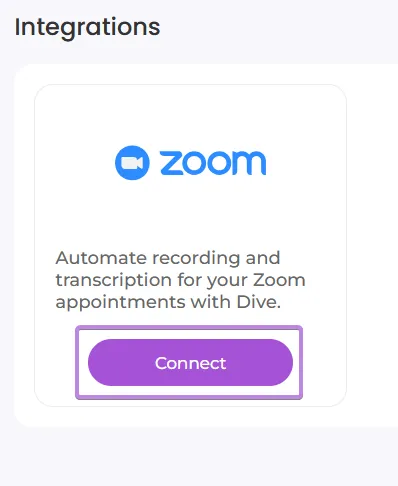
- Click Connect beside the Zoom card.
- If you don’t see the option, disable any ad-blockers and refresh.
-
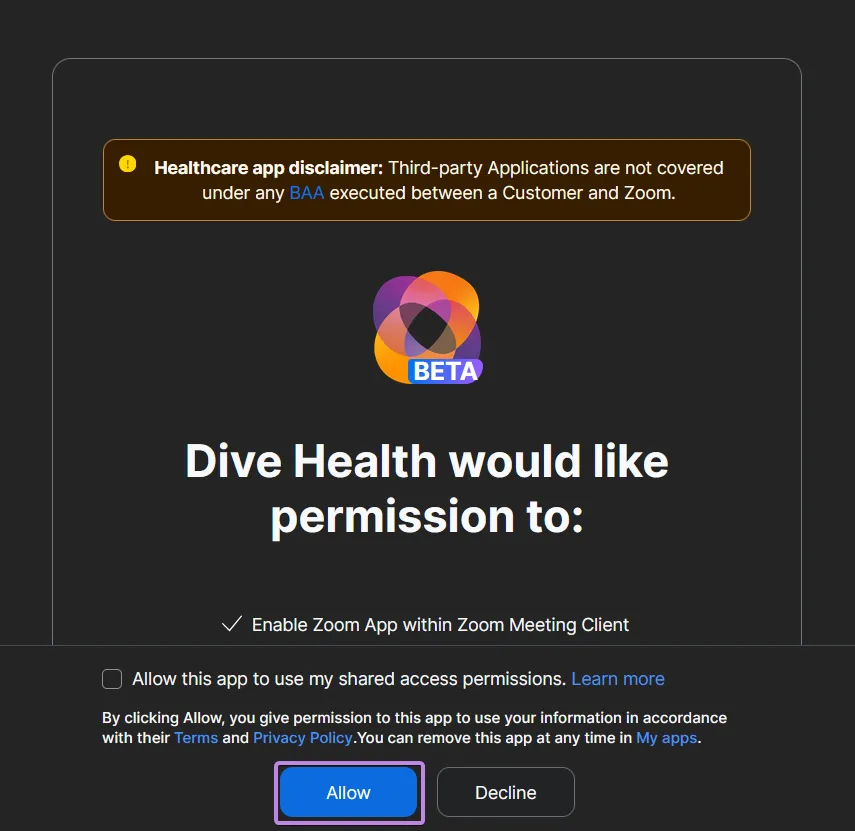
Authorize Dive in Zoom
On the Zoom authorization page, click Allow.
-
Verify connectivity
- Verify in the integrations menu that the card now says “Connected”
⛓️💥 Disconnecting your Zoom account
Section titled “⛓️💥 Disconnecting your Zoom account”-
Log in to Dive
-
Open Settings
-
Go to the Integrations Tab
-
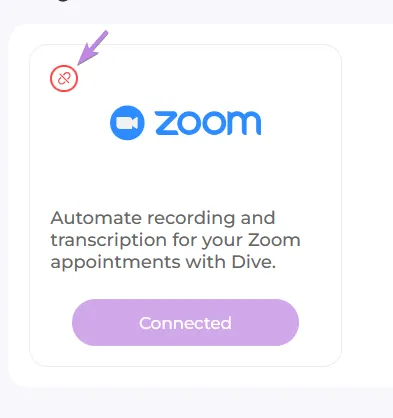
Click on the red ”🔗” button
-
Verify disconnect
- You can verify you’ve been successfully disconnected by seeing the “Connect” text on the button.