
Schedule Zoom Appointments in Dive
📋 Overview
Section titled “📋 Overview”With Dive’s Zoom integration, you can:
- Create and schedule Zoom appointments directly from Dive
- Automatically start recording and generate summaries for each session
🔗 Not integrated yet?
Section titled “🔗 Not integrated yet?”- Using dive’s Zoom summarizing requires you to connect Zoom to your dive account, You can click here to view the integration guide.
📆 Scheduling a Zoom Appointment
Section titled “📆 Scheduling a Zoom Appointment”-
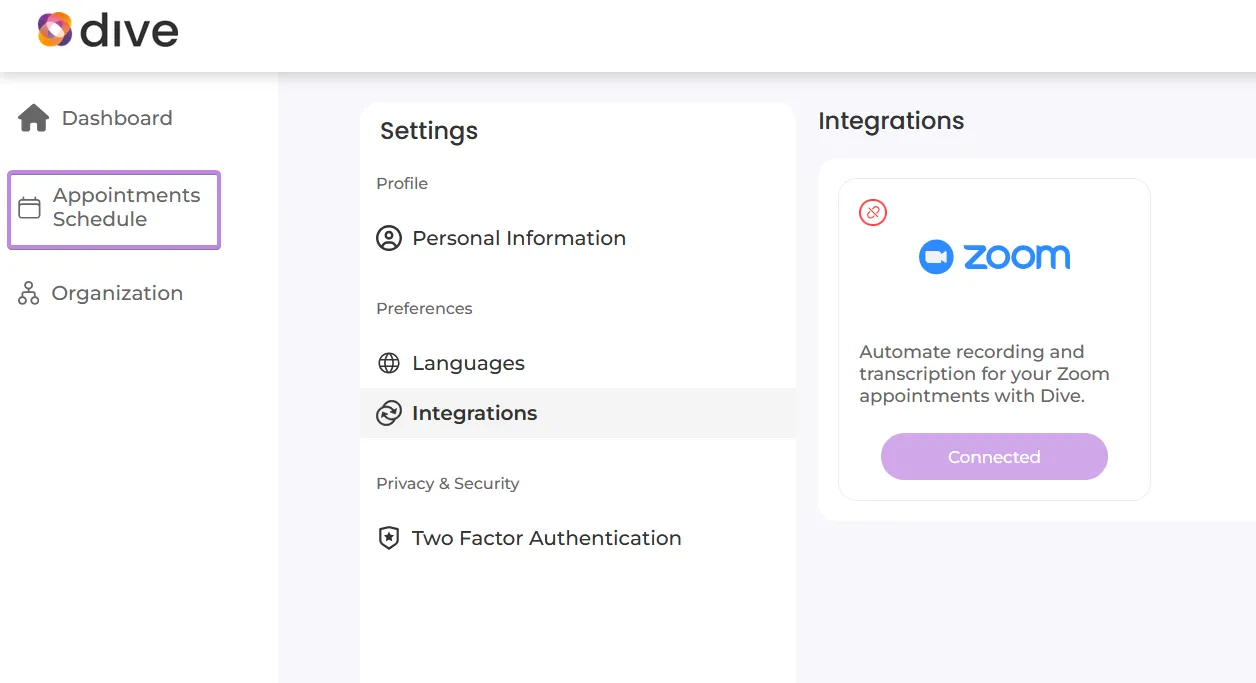
Go to Appointments
In the Integrations screen, click Appointments Schedule.
-
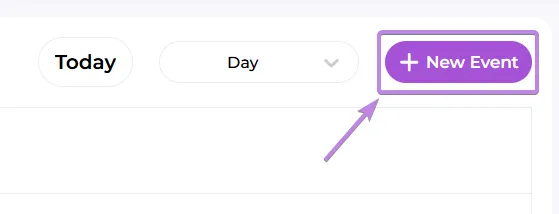
Create a New Event
Click New Event.
-
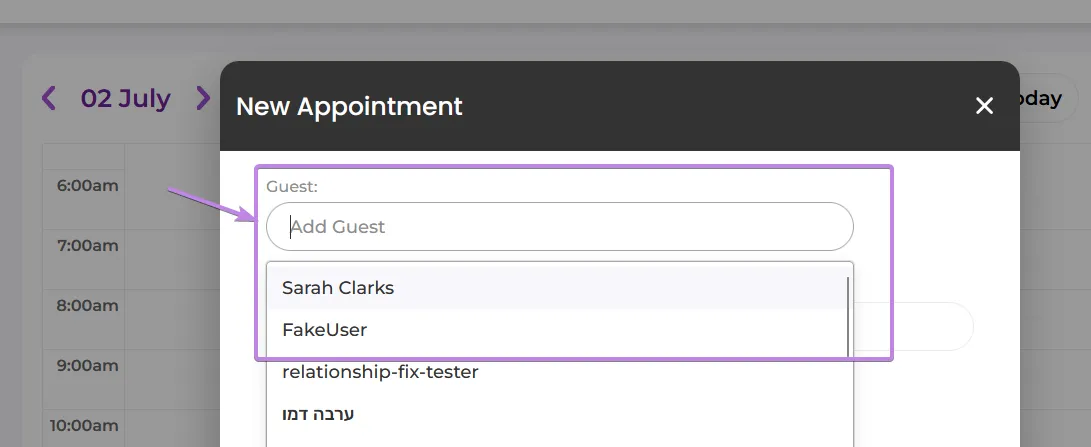
Select Patient
In the popup, choose the patient for this appointment.
-
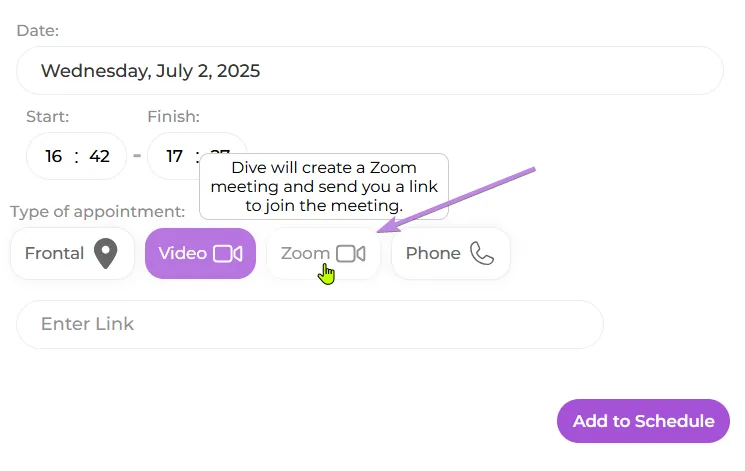
Choose Zoom Appointment Type
Click the Zoom option.
-
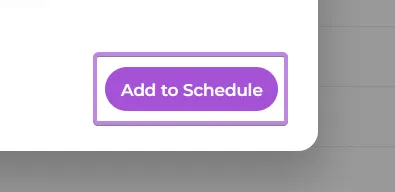
Add to Schedule
Click Add to Schedule to save the event.
-
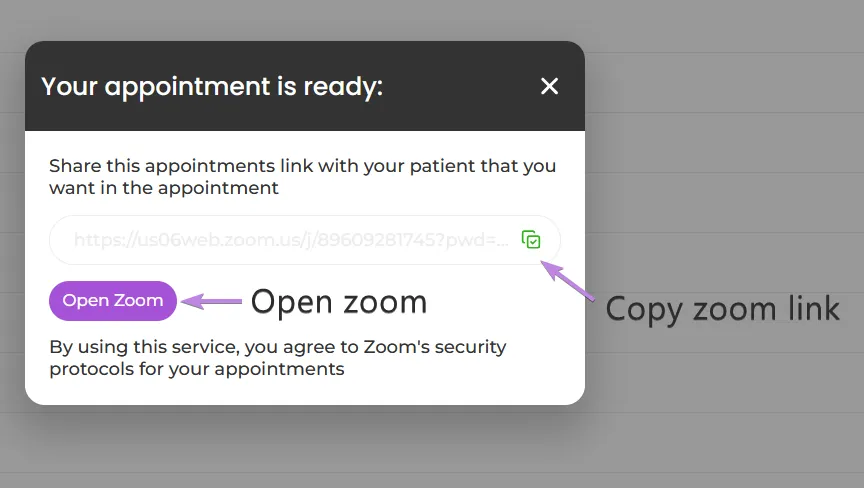
Copy or Open Zoom Link
Once created, a popup appears with buttons to:- Copy Link to clipboard
- Open Zoom to start the meeting immediately
✅ Tips & Troubleshooting
Section titled “✅ Tips & Troubleshooting”- Missing Zoom Connect option?
Disable any ad-blockers, refresh the page, and retry. - Link expired?
Delete and recreate the appointment-Zoom links are time-sensitive.