
Zoom
The Zoom integration lets Dive schedule Zoom sessions for you and turn the session audio into a structured clinical note. Dive captures the audio over Zoom’s Realtime Media Streams (RTMS) — no bot or extra participant joins the meeting.
Connect Zoom
Section titled “Connect Zoom”-
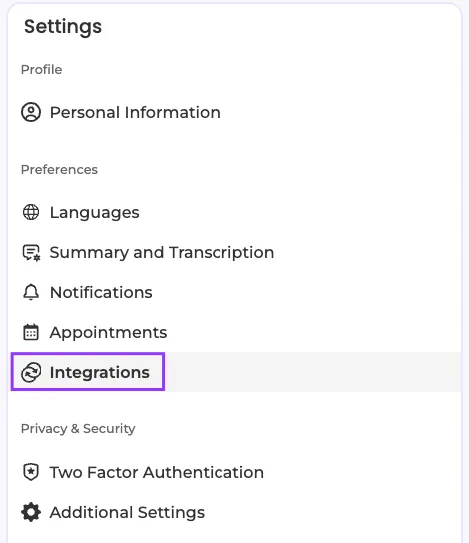
Open Settings and pick Integrations.
-
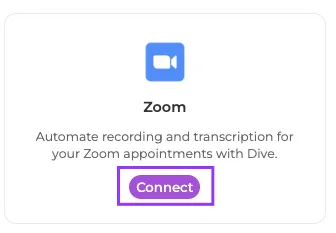
In the Zoom card, click Connect.
-
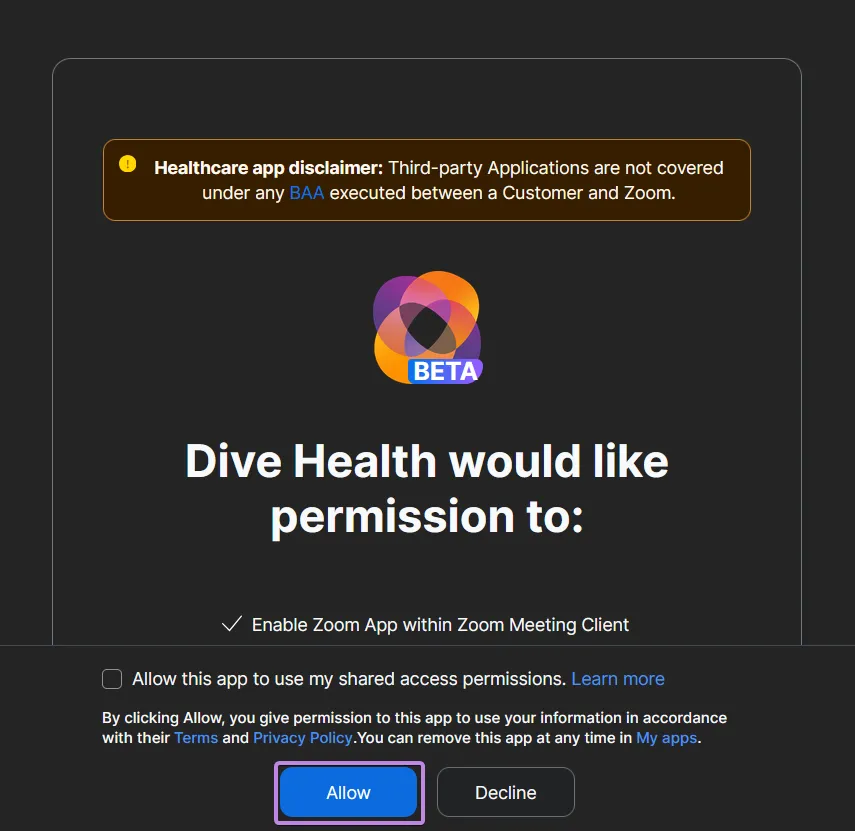
A Zoom authorization screen opens. Review the requested permissions and click Allow to authorize Dive.
-
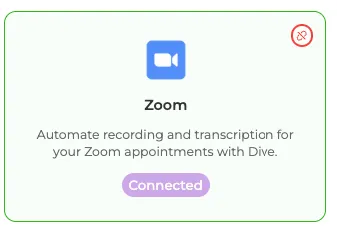
You’re returned to Dive; the Zoom card now shows Connected.
Using the integration
Section titled “Using the integration”Prerequisites: Zoom connected (above) and an RTMS-eligible Zoom host (Licensed/Pro).
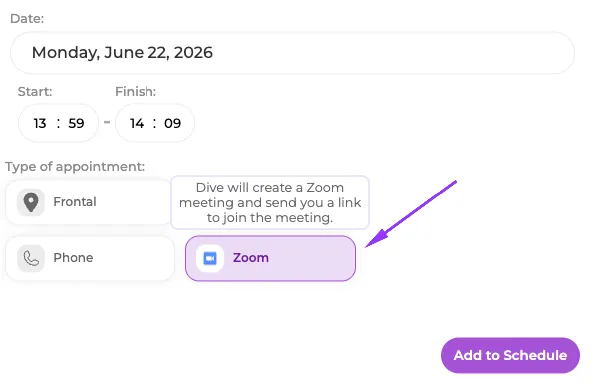
Once Zoom is connected, schedule a session the same way as any other appointment — just pick Zoom as the type. Dive creates the Zoom meeting for you and keeps the join link with the appointment.
-
When creating an appointment, choose Zoom as the type. Dive will create the Zoom meeting and give you a link to join.
-
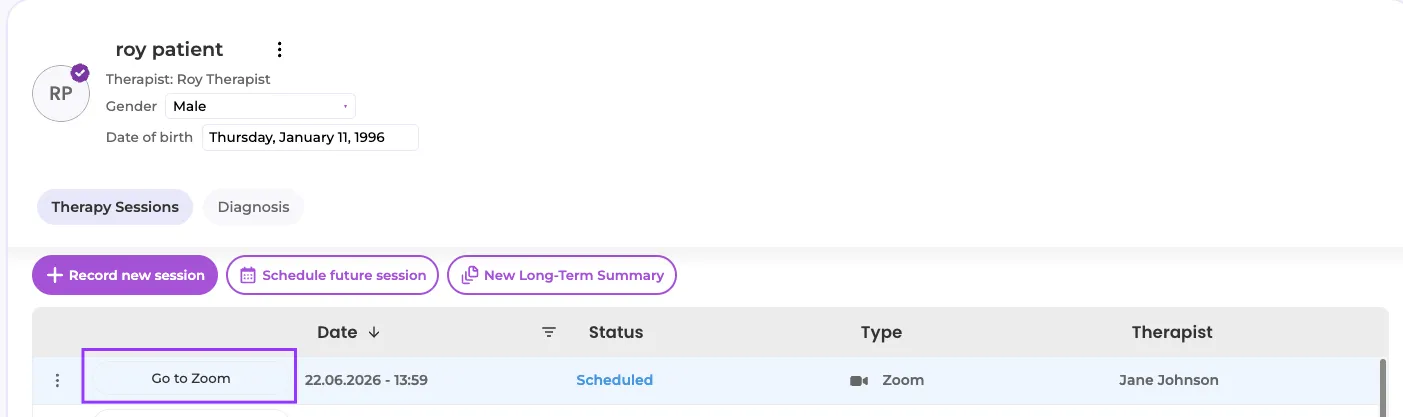
Open the patient and click Go to Zoom on the scheduled session to launch the meeting.
-
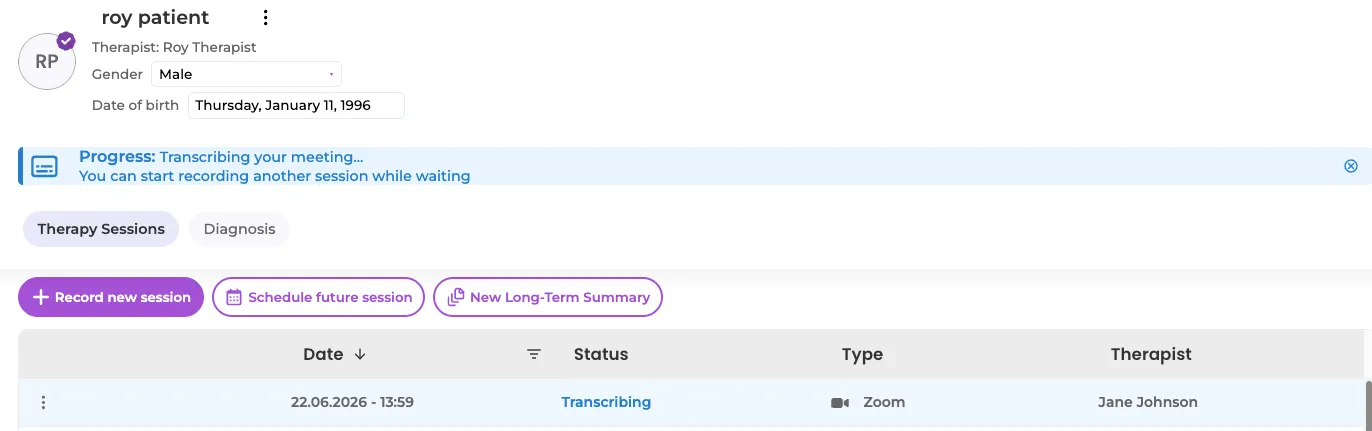
Run the session in Zoom as the host. Dive captures the audio automatically over RTMS — nothing extra joins the call — and shows a Transcribing your meeting… status while it works.
-
When you end the meeting in Zoom, the session shows a Create Summary button.

-
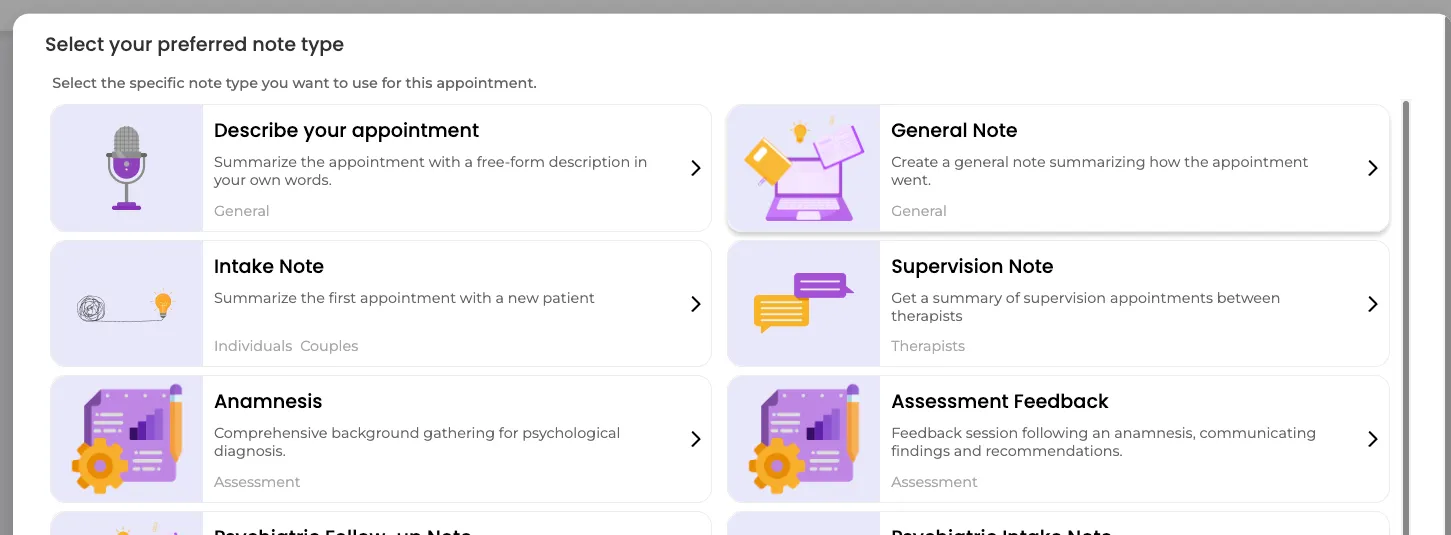
Click Create Summary, choose the note type you want, and let Dive produce a draft clinical note for you to review and edit.
How Dive keeps the connection alive
Section titled “How Dive keeps the connection alive”Once connected, Dive keeps the connection live in the background — you usually don’t need to think about it. If something on Zoom’s side invalidates the connection (you change your password, revoke access, the grant expires), Dive disconnects the integration and shows a banner asking you to reconnect.
Removing the integration
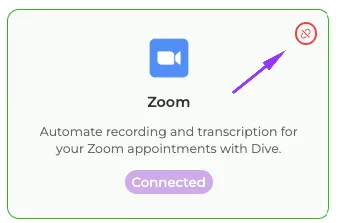
Section titled “Removing the integration”To remove Zoom, return to Settings > Integrations and click the disconnect icon on the Zoom card.
What de-authorization does:
- Dive’s authorization to your Zoom account is revoked and your stored Zoom credentials (the OAuth refresh token) are deleted immediately.
- Dive can no longer create Zoom meetings or capture session audio; any capture in progress stops.
- Existing appointments keep their join links, but new Zoom sessions can’t be created until you reconnect.
What happens to your data:
- Clinical notes and transcripts already generated stay in your Dive account — they are your records. Disconnecting removes Dive’s access to Zoom, not your existing notes.
- To delete a specific note, remove it in Dive. To erase all of your data — notes, recordings, and credentials — delete your account, which removes it permanently.